In a previous article, Installing Linux via PXE using Windows Deployment Services (WDS), I talked about using PXELinux to enable deployment of WDS images, Linux distros and a multitude of tools. It got a bit heavy when trying to make this all work but the system is now up & running and we have already benefitted from it on many occasions. So here is my guide for Microsoft admins wanting to enhance their existing Windows Deployment Services server.
Step One – Install WDS
This should be obvious and if you are reading this I imagine you’ve done it already. Ours is running on a Windows Server 2003 box but it should work fine with the latest, more secure, stuff.
- We will be adding bits to the folders within the \\WDS\REMINST share
Step Two – Install PXELinux
PXELinux is part of the SysLinux package
- Download SysLinux from here
- There’s quite a bit in SysLinux but you only need to extract the following files
- ZIP\core\pxelinux.0
- ZIP\com32\menu\vesamenu.c32
- ZIP\com32\modules\chain.c32
- Copy the files into \\WDS\REMINST\Boot\x86
- Rename pxelinux.0 to pxelinux.com
- You also need to make copies of two original WDS files in this folder
- Copy pxeboot.n12 and rename it to pxeboot.0
- Copy abortpxe.com and rename it to abortpxe.0
- Create to new subfolders
- \\WDS\REMINST\Boot\x86\Linux
- \\WDS\REMINST\Boot\x86\pxelinux.cfg
- The pxelinux.cfgfolder is where you store the files that make up the PXE boot (F12) menu.
- All the files we will put in there are text files, even though they don’t use a .txt extension
- First create a new text file called default. This is the first menu that loads.
- Paste the following text into it
DEFAULT vesamenu.c32 PROMPT 0 MENU TITLE PXE Boot Menu (x86) MENU INCLUDE pxelinux.cfg/graphics.conf MENU AUTOBOOT Starting Local System in 8 seconds # Option 1 - Exit PXE Linux & boot normally LABEL bootlocal menu label ^Boot Normally menu default localboot 0 timeout 80 TOTALTIMEOUT 9000 # Option 2 - Run WDS LABEL wds MENU LABEL ^Windows Deployment Services KERNEL pxeboot.0 # Option 3 - Exit PXE Linux LABEL Abort MENU LABEL E^xit KERNEL abortpxe.0 - Now create a text file called graphics.conf
- This file controls how the menu is displayed. It’s very versatile so have a play around until it looks as basic or as flashy as you like
- Paste the following text into it
MENU MARGIN 10
MENU ROWS 16
MENU TABMSGROW 21
MENU TIMEOUTROW 26
MENU COLOR BORDER 30;44		#00000000 #00000000 none
MENU COLOR SCROLLBAR 30;44		#00000000 #00000000 none
MENU COLOR TITLE 0 		#00269B #00000000 none
MENU COLOR SEL   30;47		#40000000 #20ffffff
MENU BACKGROUND background.jpg
NOESCAPE 0
ALLOWOPTIONS 0
- If you want to use a custom background, place it in the \\WDS\REMINST\Boot\x86folder.
- The image should be a 640×480 jpeg file.
- Make sure it has the same name as specified in the MENU BACKGROUND line in graphics.conf
- Now we need to change the default boot program in WDS
- Open the Windows Deployment Services Console
- Right Click on your Server and select Properties
- From the Boot tab change the default boot program for x86 architecture to \Boot\x86\pxelinux.com
- In Server 2008 R2 you have to use the wdsutil command line to set the the default boot program with these commands
wdsutil /set-server /bootprogram:boot\x86\pxelinux.com /architecture:x86
wdsutil /set-server /N12bootprogram:boot\x86\pxelinux.com /architecture:x86
Step Three – Test it out
Before you go any further, do a test PXE boot to check everything is OK.
I use a Hyper-V VM to make this testing process quicker. Just make sure it’s set to boot to a legacy network adapter in the settings
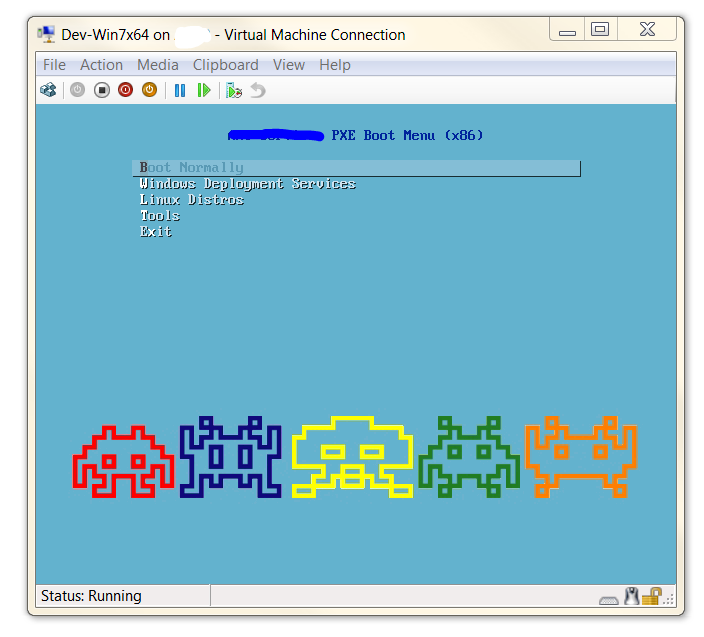
If it doesn’t load make sure you have the following files and folders in the right place within the \\WDS\REMINST share
- \Boot\x86\pxelinux.com
- \Boot\x86\vesamenu.c32
- \Boot\x86\chain.c32
- \Boot\x86\pxeboot.0
- \Boot\x86\abortpxe.0
- \Boot\x86\background.jpg
- \Boot\x86\Linux\
- \Boot\x86\pxelinux.cfg\
- \Boot\x86\pxelinux.cfg\default
- \Boot\x86\pxelinux.cfg\graphics.conf
Step Four– Add new boot options
If you can boot into the new menu and still load WDS then we are ready to add our Linux distros and other tools. If not, go back to step one and check everything.
This stage is relatively easy. It is just a case of putting the relevant netboot files for your preferred distribution in to the \Boot\x86\Linux folder and then adding a menu option for them. You can find more info on where to get these from on the official WDSLinux wiki. I’ll show you a more generic way of doing things using Debian as an example
- Create a new subfolder
- \Boot\x86\Linux\Debian\
- Download the netboot files (initrd.gz and linux) from a Debian mirror
- Copy them into the Debian subfolder
- Create a menu entry for them in \Boot\x86\pxelinux.cfg\default
LABEL debian6Netinstall
	menu label ^Debian 6-0 Net-install
	# Load the correct kernel
	kernel /Linux/Debian/Linux
	# Boot options
	append priority=low vga=normal initrd=/Linux/Debian/initrd.gz
That’s all there is to it. As long as you download the correct files and boot the correct boot options on the append line of the menu, you should be OK.
What if I need 64-bit options
This is easy too just replicate everything we did in \Boot\x86 into \Boot\x64. Don’t forget to change the WDS Server boot program for the x64 architecture (as shown in step 2) to \Boot\x64\pxelinux.com
Taking it further
Hopefully you are reading this because you have numerous ideas of what you could boot to. To help you along I’ve included my current default menu as well as adding sub-menus for Linux and Tools. Most of them were fairly straightforward as they had special PXE version with instructions on their website, e.g. GParted & Clonezilla
default
DEFAULT      vesamenu.c32
PROMPT       0

MENU TITLE PXE Boot Menu (x86)
MENU INCLUDE pxelinux.cfg/graphics.conf
MENU AUTOBOOT Starting Local System in 8 seconds

# Option 1 - Exit PXE Linux & boot normally
LABEL bootlocal
      menu label ^Boot Normally
      menu default
      localboot 0
      timeout 80
      TOTALTIMEOUT 9000
# Option 2 - Run WDS
LABEL wds
	 MENU LABEL ^Windows Deployment Services
	 KERNEL pxeboot.0
# Go to Linux sub-menu
LABEL linux
	MENU LABEL ^Linux Distros
	KERNEL vesamenu.c32
	APPEND pxelinux.cfg/graphics.conf pxelinux.cfg/linux.menu
# Go to Tools sub-menu
LABEL tools
	MENU LABEL ^Tools
	KERNEL vesamenu.c32
	APPEND pxelinux.cfg/graphics.conf pxelinux.cfg/tools.menu
# Exit PXE Linux
LABEL Abort
	MENU LABEL E^xit
	KERNEL abortpxe.0
linux.menu (save in same place default)
MENU TITLE Install a Linux Distro

LABEL debian6.0-amd64-Netinstall
	menu label ^Debian 6-0 amd64-Net-install:
	kernel /Linux/Debian-Net-Install-amd64/Linux
	append priority=low vga=normal initrd=/Linux/Debian-Net-Install-amd64/initrd.gz

LABEL Centos5.0-Install
	menu label ^Centos 5-0 32bit install:
	kernel /Linux/Centos-5.0-32-bit/vmlinuz
	APPEND ks initrd=Linux/Centos-5.0-32-bit/initrd.img ramdisk_size=100000

LABEL Debian-5.08-Installer
	menu label ^Install 5.08 (Lenny)
	kernel /Linux/debian-installer/i386/linux
	append vga=normal debian-installer/allow_unauthenticated=true  initrd=/Linux/debian-installer/i386/initrd.gz

LABEL Main Menu
      MENU LABEL ^Back to Main Menu
      KERNEL vesamenu.c32
      APPEND pxelinux.cfg/default
tools.menu (save in same place default)
MENU TITLE Tools

LABEL memtest
	menu label ^Memory Test: Memtest86+ v4.20
	kernel \Linux\memtest\memtestp
LABEL Clonezilla Live
	MENU LABEL ^Clonezilla Live
	kernel \Linux\Clonezilla\vmlinuz
	append initrd=\Linux\Clonezilla\initrd.img boot=live live-config noswap nolocales edd=on nomodeset ocs_live_run="ocs-live-general" ocs_live_extra_param="" ocs_live_keymap="" ocs_live_batch="no" ocs_lang="" vga=788 nosplash fetch=http://192.0.0.24:81/RemoteInstall/Boot/x86/Linux/Clonezilla/filesystem.squashfs
LABEL gparted
	MENU LABEL ^GParted Live
	kernel \Linux\gparted\vmlinuz
	append initrd=\Linux\gparted\initrd.img boot=live config  noswap noprompt  nosplash  fetch=http://192.0.0.24:81/RemoteInstall/Boot/x86/Linux/GParted/filesystem.squashfs
	TEXT HELP
		GParted live version: 0.8.1-3. Live version maintainer: Steven Shiau
		Disclaimer: GParted live comes with ABSOLUTELY NO WARRANTY
        ENDTEXT
LABEL Main Menu
	MENU LABEL ^Back to Main Menu
	KERNEL vesamenu.c32
	APPEND pxelinux.cfg/default
Conclusion
This is a really useful tool to have in our SysAdmin arsenal. I encourage you to give it a go. Let me know if your successful, or if you are having any problems getting it working, in the comments section. I’d also love to hear of any other tools you’ve added to the PXE menu.

 Thom's HeadSpace
Nice work Thom.
I’ve had something very similar up and running for a little while which might add an idea or two to the mix.
My pxelinux files:
\\{server}\REMINST\Boot\pxelinux\pxelinux.0 – The boot loader
\\{server}\REMINST\Boot\pxelinux\menu.c32 – The basic menu system suits me
\\{server}\REMINST\Boot\pxelinux\chain.32 – A hard disk boot loader
\\{server}\REMINST\Boot\pxelinux\memdisk – A floppy image boot loader
\\{server}\REMINST\Boot\pxelinux\pxelinux.cfg\default – pxelinux’s default configuration file.
I then manually configured my DHCP to point the PXE Client to the PXELinux bootloader. i.e.
DHCP Option 66 (Boot Server Host Name): “ct-deploy.act.rpl.local”
DHCP Option 67 (Boofile Name): “boot\pxelinux\pxelinux.0” *
* WDS/RIS enables MS’s own Trivial FTP Daemon, a network service which responds to PXE Clients. The daemon is configured in the registry to set a root folder, (HKEY_LOCAL_MACHINE\SYSTEM\CurrentControlSet\Services\TFTPD\Parameters\ Directory = “D:\RemoteInstall”) hence the path to the bootloader in DHCP Option 67
My pxelinux is currently configured with three boot options:
>>
DEFAULT menu.c32
PROMPT 0
MENU TITLE CT-DEPLOY PXE Boot Options
TIMEOUT 30 – Time in tenths of a second before default option is selected. Overridden by cursor up/down.
LABEL Boot Local
MENU LABEL ^Boot from the hard-disk
MENU default
KERNEL chain.c32
APPEND hd0 0
LABEL Windows Deployment Services – Boot the original 32bit WDS bootloader
MENU LABEL ^Windows Deployment Services
KERNEL ../x86/wdsnbp.0
APPEND keeppxe
LABEL Ghost Client
MENU LABEL ^Ghost Client
KERNEL memdisk
APPEND initrd=GhostBoot.img
>>
The Ghost Client is a mountable MS-DOS floppy image (*.img created with WinImage or similar) which allows me to quickly multicast a Ghost image to many PCs at once from a Ghost Server.
Cheers
LikeLike
How would I get Spinwrite or Seatools to work.
LikeLike
Do you have any video tutorial of doing the same
LikeLike
(Please excuse the typos chain.32 should be chain.c32. Also Timeout explanation was for benefit of my team – forgot to redact.)
LikeLike
Very useful, thank you
Would it be possible to use this setup to perform bare-metal restores?
I’m referring to using images (including system state) taken from fully configured servers, running specific applications or databases?
-Eugene
LikeLike
You can use WDS to capture an image of a computer to be restored at a later date by using the Capture image as mentioned in the comment above. To fully automate it you would need to use the paid-for Microsoft System Center software but if you are able to be physically at the machine then you only need WDS
LikeLike
Do you happen to know whether “Capture image as” could work with a backup image produced by Volume Shadow Service?
-Eugene
LikeLike
I have no idea I’m afraid, sorry.
LikeLike
My Ghost deployment using pxelinux is essentially a bare metal restore. There’s no reason why you couldn’t put together a network boot disk (DOS or Linux) that could perform the kind of restore you’re trying for (*.bkp ?).
LikeLike
Since you’ve already set up WDS you could just boot WinPE and use ImageX (no need for a Ghost license). I use ImageX for full machine backup and bare metal restore.
LikeLike
That’s true (and I have used this in the past) but I prefer the GUI management tools that WDS provides that achieves the same goals. Same underlying tech anyway 🙂
LikeLike
Completely agree with you both. Guess i’ve been spoilt by Ghost for too many years to want to give it up. 🙂
LikeLike
I’m going to try to follow this tomorrow. I will post if I have any problems. Although I must say, it does look very well written and thought-out compared to some of the others I’ve looked at. One problem to get started with may be this: I have just clicked the link [Download SysLinux from here] in Step Two and received a page stating, “The Syslinux website is currently out of order.”
I’m hoping to be able to boot BackTrack x64 and Ubuntu x64 via WDS. I have just tested Windows 7 x64. It booted fine. But I cancelled it after getting to the Language Selection screen (I just wanted to make sure it was working).
LikeLike
Good luck, do let me know how you get on.
It seems like the Syslinux page has been down for a while, hopefully they aren’t going to disappear completely!
You can do a search on google for “syslinux mirrors” to find a different place to download them, like this UK based one http://www.mirrorservice.org/sites/ftp.kernel.org/pub/linux/boot/syslinux/
LikeLike
Hi the bootloader works fine.
I have one problem how i add images to the bootloader?
I have a Projekt on our vocational school in styria austria i must deploy ubuntu withe pxe boot .
i hope you can help me thank you for your answer
LikeLike
I’ve just set this up myself and it seems to be working fine. Follow the instructions below and let me know how you get on.
MENU TITLE Ubuntu 1.10 x86 (Oneiric Ocelot) Netboot Installlabel install
menu label ^Install
menu default
kernel /Linux/Ubuntu/linux
append vga=788 initrd=/Linux/Ubuntu/initrd.gz -- quiet
label cli
menu label ^Command-line install
kernel /Linux/Ubuntu/linux
append tasks=standard pkgsel/language-pack-patterns= pkgsel/install-language-support=false vga=788 initrd=/Linux/Ubuntu/initrd.gz -- quiet
LABEL Linux
MENU LABEL ^Back to Linux Menu
KERNEL vesamenu.c32
APPEND pxelinux.cfg/linux.menu pxelinux.cfg/graphics.conf
This worked for me. After the setup runs it will look for an ubunto mirror to download the rest of the setup files over the internet.
BTW, I got the code from point 10 from the netboot download in the file \ubuntu-installer\i386\boot-screens\txt.cfg
You might find more help here » help.ubuntu.com
LikeLike
Hi i have an other problem how can i add my own mirror server in the neetboot installer of ubuntu i must everytime download from the internet the installations files.
Thanks
LikeLike
You can do this by having a copy of the full install version of Ubuntu hosted by IIS on the same server as WDS. Then, when the setup asks for a mirror to choose just point the installer to http://WDSServer/VirtualDirectory. You should find more info on this in the Ubuntu help site. They will probably recommend apache as a webserver but IIS is fine for this purpose
LikeLike
How does the bootloader gets the mirror of our own website?Or Virtual directory
Thanks
LikeLike
After the netboot starts it will get to the stage where it asks if you want to auto-select a mirror or specify your own. Just type the URL there.
I haven’t done this for ubuntu but have for Debian so I guess it’s similar.
LikeLike
how i create a Virtual Directory,what files come in this directory?
Thanks Markus
LikeLike
I think you’ve misunderstood the process. A virtual directory is just a term used by Microsoft’s IIS web server for a local folder that can be accessed by HTTP or FTP (read more: http://bit.ly/ncj65l).
If you want to install an ubuntu image you could use clonezilla or point to a CD copy on your network as described in the Official ubuntu help linked to in previous comments
LikeLike
My situation is slightly different in that I’ve had my IT dept follow this:
http://www.vcritical.com/2011/06/peaceful-coexistence-wds-and-linux-pxe-servers/#more-3715
So that I can have control over the Linux end of it, but I’m stuck as to my next step, since I know I can’t have control over the DHCP server either.
So, I’m basically wanting to do what you did, but don’t have control of either the WDS server or the DHCP server, nor can I use my Linux PXE server as a DHCP server in the traditional sense. Help!
LikeLike
You don’t need to modify DHCP but you do need to change the WDS settings. That’s the only way you’ll be able to serve both from the same server
LikeLike
Modify the WDS settings how? Serve both of what? DHCP and PXE? I’m in an enormous corporate environment, and another DHCP server is the last thing they want, and in any case that’s completely out of my purview or interest. I just need control over the PXE booting of the Linux portion only. They’ve got the WDS server PXEChaining out to my test server now and I hope to pick up the ball from there. I just don’t know how to do that.
LikeLike
OK, I just properly read the article you linked to and know understand what you are trying to do. I’m afraid I only have experience hosting it all on one box (i.e. the WDS server).
From my limited knowledge, when using PXE-chaining you don’t need to involve DHCP. Just set up your linux PXE server as normal but skip the DHCP bit. It’s not needed as your client already has an IP address passed over from the initial menu provided by the WDS server.
LikeLike
Arriving at work, I read your comment another way. Are you saying that it’s best to configure WDS ONLY? Then I have to go through a whole different, totally ignorant about Linux group in order to make any changes, and I had hoped to avoid that.
LikeLike
No I’m not saying that. You have two options,
1) Have WDS host everything. You can then add images/new menus by just adding them to a folder share on the WDS server (as I have done in this article)
2) You have a WDS server that chains to another PXE server hosting all your Linux images and menus. The network won’t mind having 2 PXE servers because DHCP will only point to the WDS one
LikeLike
Thanks for your reply. I am not able to do the first, as I have no control over that machine, only IT does, and even getting this test environment took a month of delay. The second is what I am setting up, but the question is how, specifically, to do that. I’m in a huge learning curve here and am looking for some help as to why I get the error message I’m getting, etc.
LikeLike
i am not success to install Linux through via pxe Linux getting error after boot menu unable to download the kickstart file modify the kickstart parameters below or press cancel to interactive installation
ftp:\\172.4.10.98\linux\ks.cfg
LikeLike
I haven’t used kickstart files before.
Have you tried installing it without calling the ks.cfg file?
LikeLike
dear i also use it but i think main problem is that they could not load
lan drivers
when i boot they getting error unable to find any drivers
i do not thik about it how to add lan drives this image …………….
LikeLike
i originally used the set up guide found on the SYSLINUX website (down at time of this post–go figure) and i decided to make a couple of changes which seem to be easier to deal with.
to possibly add to a previous question — in order for your client to be able to PXE boot you need to specify two DHCP options (66 and 67) which specify boot server and boot file; respectively. if you are not able to set those options your client will never know how to PXE boot.
as in this article (extremely helpful) i set the bootprogram to pxelinux.com for both architectures (i386 & x64) but i do not call it from option 67. i instead call “\boot\x64\wdsnbp.com” as a server option. the cool part is this file will auto detect hardware capabilities and give you an i386 or x64 boot menu. this is very handy indeed.
my deployment at a glance:
DHCP server is a separate box
PXE server is Windows 2008R2 as a VM (2 CPUs and 2048RAM)
Thank you!
LikeLike
Glad this was helpful. BTW, DHCP options are only necessary if your PXE server is on the sane box as you DHCP server
LikeLike
Tried this and my menu is failing to load.Config file does not contain a valid entry?
LikeLike
Doe sit work if you use the standard menu that comes with syslinux?
LikeLike
Hi, just wanted to say nice document. I’ve been playing around on the linux side, (ideally I’d love to build a super PXElinux boot server system..) and its an expansive subject. I’ve chosen a simpler route on the GFX. The pxelinux (syslinux as well) has support for two commands –
MENU RESOLUTION SIZE SIZE (EXAMPLE MENU RESOLUTION 1024 768)
and
MENU BACKGROUND name of pic (example MENU BACKGROUND linux.png)
This sets the size of menu screen and places a picture there.
One of the observations I have is reading through the docs and deployments just how wide an array of ‘how to’ has been reached, often by different ways and methods.
Thanks for your article!
DS
LikeLike
Awesome article dude!
This got me some good street cred at work 🙂
LikeLike
Can anyone help me with a Zorin install. I have everything working up to my boot menu. I have Zorin ISO images. 5.1, 5.2, and 6 lite. I can not find the linux kernel.
LikeLike
I am having trouble getting the pxelinux.com to launch when booting from PXE. When I boot, I get
TFTP Download boot\x64\pxelinux.com.
over and over and then eventually the download fails. I am missing something here but am not quite sure what it is. I am running WDS on 2008R2. Is there a separate pxelinux.0 for x64 architecture?
LikeLike
have you guys seen Serva?
http://www.vercot.com/~serva/howto/WindowsPXE1.html
LikeLike
I stumbled upon this article today after doing some research on PXE, WDS, Linux etc. and I have to say your solution is great. For me certain things are working and others aren’t and being a Linux newbie, i’ll probably have to work at it longer to get things fully functional.
I’m running WIndows Server 2008 R2 x64 with WDS which enables me to deploy all versions of Windows, but I was looking for something to enable me to run utilities such as memtest, acronis recovery, ghost, burnin software etc.thru PXE instead of having to create CDs, DVDs and USB keys. So far I have the basics setup and functional. With the default menu I can launch WDS, install UBUNTU (from a repository) and launch memtest86 4.0a.
I could not get your memtest86+ 4.20 to work, so I searched for something else and found memtest86 4.0a worked. I’m still trying to figure out how to get Clonezilla to work as everything boots fine but near the end it is unable to load a file system. So I imagine that the “filesystem.squashfs” is not configured properly in my append section.
Thanks for posting this as it has been a real help for something that I have wanted to do for a long time.
LikeLike
Also having issues with the squashfs and fetching http requests. I setup iis and set a meme type for the squashfs so that I can download the squashfs file from a web browser but that didn’t seem help.
LikeLike
Remove the .* text/plain and try again
LikeLike
Great Tutorial! Thanks
LikeLike
after doing the all steps when i click on WDS menu on clinet pc then error shows up “file \boot\bcd an error occurred while attempting to read boot configuration data”
even my linux distributions is booting sucessfully
any need full idea
LikeLike
Did you get this fixed Jaf?
LikeLike
hi, nice guide 🙂
it’s too bad that is not work on isolinux 5 there is error
if you know how to fix the error i be heppy..
I have a question:
It is possible to look option in the menu or the menu is self with password?
thank you
LikeLike
Clonezilla isn’t working, but everything else is great. Thanks so much for the tutorial.
LikeLike
I’ve had a PXELINUX/WDS setup running for some time now, and looking at add Clonezilla to it. I noticed that the way thommck has it set up is to load Clonezilla via HTTP. Rather than have to step up HTTP services on the WDS box, I’d like to use TFTP as Clonezilla’s own documentation uses. That’s where things get a bit hairy. Still working on it, but it’s not as straightforward as I’d like it to be.
LikeLike
I just used a pre-documented solution for Clonezilla from the PXELinux wiki.
Let us know if you manage to get it sorted
LikeLike
First of all Thanks for the wonderful article, it helps me lot.
i want to fully automate the Linux installation process like i have used kickstart file for the redhat6 installation but currently i have to select the redhat6 OS from the PXE menu at boot time. i want to automate this step also, is there any way to achieve this?
I am using WDS with Windows server 2008 R2. for windows OS there is a way like we can set the default client unattended file for the prestaged machine using below command:
WDSUTIL /Set-Device /Device:Computer1 /WDSClientUnattend:WDSClientUnattend\Unattend.xml
LikeLike
You should be able to select an item on the PXE menu as the default timeout option. Normally it is set to boot to the hard drive but you should be able to set it to any menu item.
Would that help?
LikeLike
Thanks for your quick reply, but in case of multiple linux os like redhat 5, 6 and some others, can i select required OS at runtime through any external command?
LikeLike
I don’t think it would be impossible but it’s beyond my knowledge I’m afraid
LikeLike
Nice Walk through..
I’ve been trying to set this up with syslinux-4.06 (5.0) doesn’t work. I had to repeat the default commands for server 2012 for the x64 arch also. Hopefully this will safe someone the couple hours it took me to figure it out. so ……..repeat..rinse…
wdsutil /set-server /bootprogram:boot\x86\pxelinux.com /architecture:x64
wdsutil /set-server /N12bootprogram:boot\x86\pxelinux.com /architecture:x64
Thanks for the post made this a relative breeze
LikeLike
Cool blog! Is your theme custom made or did you download it from somewhere?
A theme like yours with a few simple adjustements would
really make my blog stand out. Please let me know where you got your design.
Bless you
LikeLike
OK, so I’m thinking you are just a spammer but just in case…
I use the free Skylark theme with a custom background and web fonts. You can read about them on my about page
LikeLike
My submenus are not working. When i select them in the PXE boot screen it loads to a screen with a boot: prompt
LikeLike
I had a similar problem at first.
I think it is caused by the pxelinux.cfg files in the menu’s not linking correctly after you change them from the defaults. Have a look through them and make sure they actually contain usable commands
LikeLike
Thanks for the assistance. I double checked my default file and noticed that I left something out.
LikeLike
Hey dude, great post!
Unfortunally i get the Windows Boot Loader again and again and again… do I have to do some changes in WDS? I don’t think so…
Cheers
/Tobi
LikeLike
works 😉 but i can’t include a .iso file like acronis…is there any chance to get acronis into the syslinux boot loader?
LikeLike
Yes it is possible for Acronis. Simply copy the kernel.dat and ramdisk.dat from the Acronis ISO in \linux\acronis folder of your pxe server.
LikeLike
…and something like that in your Tool.menu:
LABEL acronisdeploy
Menu label Acronis true image 2013(Clone,ghost,restore,etc.)
kernel \Linux\Acronis\kernel.dat
append initrd=\Linux\Acronis\ramdisk.dat vga=791 ramdisk_size=32768 acpi=off quiet noapic
LikeLike
Thanks for the tip Jack!
LikeLike
I have checked everything but am getting an error when testing with a vm during PXE boot. It contacts the server, starts the TFTP download of pxelinux.com, shows the copyright message and then says failed to load ldlinux.c32 Boot failed… Not sure where to go, help anyone???
LikeLike
Disregard, I found out that Syslinux 5.0 didn’t work and confirmed that the hard way! Thanks.
LikeLike
Well the problem i have is, that with Syslinux 4.x i get “error loading kernel image or corrupt image”.
but with 5.0 syslinux it won’t load the Files. I’m trying to get my IBM BomC PXE Files loaded up…
This is the original File which is made by IBM:
prompt 0
default toolscenter
timeout 100
label toolscenter
display bsb.msg
kernel img2a
append initrd=img3a vga=0x317 root=/dev/ram0 rw ramdisk_size=100000 tftp_server=192.168.20.1 tftp_tcrootfs=tcrootfs tftp_tczip=tc.zip debug_level=1 silent_boot=no boot_src=4 iommu=soft
and i have shortened it to and included it in the default-file which is in \x64\pxelinux.cfg\default
label toolscenter
display bsb.msg
kernel img2a
append initrd=img3a vga=0x317 root=/dev/ram0 rw ramdisk_size=100000 tftp_server=192.168.20.1 tftp_tcrootfs=tcrootfs tftp_tczip=tc.zip debug_level=1 silent_boot=no boot_src=4 iommu=soft
Can anybody tell me why syslinux 5 hates this?
LikeLike
search for the files in your syslinux 5 folder which you extracted and copy it to reminst\boot\architecture\
LikeLike
Very good instruction, I need to find out from you if I need to have both the wds service and linux pxe service running or do I need to stop the linux pxe serivce runing
LikeLike
I’m not 100% if I follow your question but you should only need the WDS service.
You don’t install a Linux PXE service, you just add the SysLinux PXE files to your existing WDS Server
LikeLike
Hello and thanks for this wonderful guide.
https://thommck.wordpress.com/2011/09/09/deep-dive-combining-windows-deployment-services-pxelinux-for-the-ultimate-network-boot/
Here I am done till Step 3, boot option appears, but nothing happend.
My purpose was to boot Ubuntu for Ubuntu deployment over WDS
-OR-
Add Clone Zila so I can deploy clonzila images from WDS
——— I would be thankful if you can assist me after step 3, ….. in my case, when I click on custom boot menu of Ubuntu, nothing happend.
LikeLike
It’s most likely an incorrect setting in your default file that you created in Step 2
I haven’t used Ubuntu but for debian I’ve got this entry
LABEL debian6.0-amd64-Netinstallmenu label ^Debian 6-0 amd64-Net-install:
kernel /Linux/Debian-Net-Install-amd64/Linux
append priority=low vga=normal initrd=/Linux/Debian-Net-Install-amd64/initrd.gz
and for CloneZilla I’ve got
LABEL Clonezilla Live

    MENU LABEL ^Clonezilla Live

    kernel \Linux\Clonezilla\vmlinuz

    append initrd=\Linux\Clonezilla\initrd.img boot=live live-config noswap nolocales edd=on nomodeset ocs_live_run="ocs-live-general" ocs_live_extra_param="" ocs_live_keymap="" ocs_live_batch="no" ocs_lang="" vga=788 nosplash fetch=http://192.0.0.24:81/RemoteInstall/Boot/x86/Linux/Clonezilla/filesystem.squashfs
I don’t fully understand the APPEND line myself but that is the key to get them to load. Try searching online, that’s what I did for both the entries above
LikeLike
I have to tell ya I cant get this to work for nothing, I am not a programmer and though it may be easy to you guys that know programming it is not to guys ho don’t.
Because this tutorial was made in a simple fashion I was able to get my custom pxe screen loaded by now I am stuck as I don’t know how to get any Linux distro to boot via pxe.
I have tried you premade stuff no luck. can we get a step by step of how to do this like you did above with the screen loader
LikeLike
I’m no programmer either!
Have you completed step 3 but you are stuck on step 4?
Can you give me a few more details on what exactly isn’t working and what distro you are trying to boot to
LikeLike
ok so here is my setup:
#-
LABEL
kernel Images/Ubuntu/ubuntu/casper/vmlinuz.efi
APPEND boot=nfs NETBOOT=nfs NFSROOT=192.168.1.2:/Images/Ubuntu/ubuntu initrd=/Images/Ubuntu/ubuntu/casper/initrd.lz
1 other thing to note i am using the full install cd which also acts as a live disc, i have the full image extracted here on my server – C:\RemoteInstall\Boot\x64\Images\Ubuntu\ubuntu
it all appears to be going well then I get this – Begin: Running /scripts/nfs-premount … Done
followed by – nfsmount needs a path
the nfs mount needs a path message repeats over and over again . so at some point it all just seems to crash and never recover. the nfs is accessible i know cause i can from other machines. so i wonder what im doing wrong?
LikeLike
Another setup that I had in place for about a year now.
DEFAULT vesamenu.c32
PROMPT 0
MENU TITLE Gens PXE Boot Menu
MENU INCLUDE pxelinux.cfg/graphics.conf
MENU AUTOBOOT Starting Local System in 20 seconds
# Option 1 – Exit PXE Linux & boot normally
LABEL bootlocal
menu label ^Boot Normally
menu default
localboot 0
timeout 200
TOTALTIMEOUT 9000
# Option 2 – Run WDS
LABEL wds
MENU LABEL ^Windows Deployment Services
KERNEL pxeboot.0
# Option 3 – Parted
label Parted
MENU LABEL Parted – another Clonezilla
kernel images/pmagic-pxe-4.5/pmagic/bzImage
append initrd=images/pmagic-pxe-4.5/pmagic/initramfs load_ramdisk=1 prompt_ramdisk=0 rw sleep=10 livemedia
# Option 4 – IPcop
LABEL IPCOP Regular
MENU LABEL ICOP Regular
KERNEL images/ipcop/2.0.2/i486/vmlinuz
APPEND mode=install initrd=images/ipcop/2.0.2/i486/instroot.img loglevel=4 ipcopboot=net
IPAPPEND 3
# Option 5 – Ubuntu 10.10
LABEL Ubuntu 10.10
MENU LABEL Ubuntu 10.10 Old version
KERNEL images/ubuntu/ubuntu-installer/amd64/linux
append mode=install initrd=images/ubuntu/ubuntu-installer/amd64/initrd
# Option 6 – memtest
LABEL Memtest
MENU LABEL MemTest All Versions
KERNEL images/ipcop/2.0.2/i486/memtest
APPEND –
# Option 7 – Password hack
label win-password-reset
MENU LABEL Windows Password Reset
KERNEL images/cd110511/vmlinuz
append rw vga=1 initrd=images/cd110511/initrd.cgz,images/cd110511/scsi.cgz
# Option 8 – Full Blown Clonezilla
Label Clonezilla
MENU LABEL Clonezilla the one and only!
kernel /images/clonezilla/vmlinuz
append initrd=images/clonezilla/initrd.img boot=live live-config noswap nolocales edd=on nomodeset ocs_live_run=”ocs-live-general” ocs_live_extra_param=”” ocs_live_keymap=”” ocs_live_batch=”no” ocs_lang=”” vga=788 nosplash fetch=ftp://Administrator:Table1spoon@10.0.0.24/clonezilla/filesystem.squashfs
# Option 9 – Acronis
LABEL acronistrue
MENU LABEL Acronis Data Restore
kernel images/acronis/kernel.dat
append initrd=images/acronis/ramdisk.dat vga=791 ramdisk_size=32768 acpi=off quiet noapic
# Option 10 – Hirens
LABEL Hirens
MENU LABEL Hiren’s Boot CD
kernel /images/hirens/memdisk
append iso initrd=/images/hirens/Hirens.iso raw
# Option 11 – Ubuntu 12.10
LABEL Ubuntu 12.10
MENU LABEL Ubuntu 12.10 November 2012
KERNEL images/ubuntu-new/casper/vmlinuz
append mode=install initrd=images/ubuntu-new/casper/initrd.lz
# Option 13 – Openelec Acer Revo
LABEL OpenElec.tv
KERNEL images/openelec/KERNEL
#APPEND ip=dhcp boot=CIFS=//10.0.0.24/openelec,user=xbmcrevo,password:xbmc disk=CIFS=//10.0.0.24/Storage,user=xbmcrevo,password=xbmc
#APPEND ip=10.0.0.71:10.0.0.1:10.0.0.24:255.255.255.0 boot=NFS=10.0.0.24:/mnt/store/openelec disk=NFS=10.0.0.24:/mnt/store/openelec/storage overlay
#APPEND ip=dhcp boot=NFS=10.0.0.24:/mnt/store/openelec disk=NFS=10.0.0.24:/mnt/store/openelec/storage overlay
APPEND ip=dhcp boot=NFS=10.0.0.24:/mnt/share/OpenELEC/System disk=NFS=10.0.0.24:/mnt/share/OpenELEC/Storage
# Option 14 – Exit PXE Linux
LABEL Abort
MENU LABEL Exit
KERNEL abortpxe.0
LikeLike
Thank you for the great guide, worked flawlesly! One question allthough, could you be so kind and share the background image, old memorys, i just love it 🙂
LikeLike
Your welcome 🙂
The image is from a great site called SimpleDesktops http://simpledesktops.com/browse/desktops/2011/may/13/invaders/ the artist has a portfolio at http://rolito86.deviantart.com/
LikeLike
I am trying to set this up to work with WDS (2012 R2) and Hyper-V so that I can deploy O/S’s other than Windows to the VM’s hosted. I have followed this exactly but have had no luck in getting the PXELinux to be the boot. What I did notice is that the VM’s are being detected as x64uefi, not x64 and I tried to copy the configuration to the x64uefi and that didn’t work. I then pointed the /architecture:x64uefi to the x64 folder but once again not luck!
Has anyone got this to work for Windows Server 2012 R2? If so please provide some insight as I need this to work!
Thank you! in advance…
Bill S.
LikeLike
I haven’t needed to do this yet so I’m unable to help you.
THis article may reveal some clues http://technet.microsoft.com/en-us/library/cc749064(WS.10).aspx
Please feed back if you find a solution, I’d be really keen to hear about it
LikeLike
HI Bill, I wanted to know if you got this working on WDS 2012 R2? I have this working on WDS 2008 R2 and wanted to know before I try it myself.
LikeLike
Dear Bill,
main change in Hyper-V 2012 R2 is the gen 2 VM which is EFI based. The gen 1 is non efi. I have such a deployment and will test out this tutorial and come back with feedback.
regards
LikeLike
Working configuration for PING (Partimage Is Not Ghost):
First download the PING iso image (for example PING-3.02.iso) and extract the content to your \RemoteInstall\Boot\x86\Linux\PING\ (you can use 7zip to do that)
Then add the following menu entry to your pxelinux.cfg\default
LABEL PING
menu label ^PING – Partimage Is Not Ghost
kernel /Linux/PING/kernel
append initrd=/Linux/PING/initrd.gz vga=normal devfs=nomount pxe ramdisk_size=70000 load_ramdisk=1 init=/linuxrc prompt_ramdisk=0 initrd=initrd.gz root=/dev/ram0 rw noacpi noapm pci=noacpi lba acpi=off apm=off
LikeLike
Thanks for sharing 🙂
LikeLike
Thanks for this writeup! I’m going to attempt to implement this so I can (hopefully) boot SpinRite and MemTest via my WDS server. I’ve seen people mention that syslinux 5.x does not work, but I don’t see anywhere in the guide or comments exactly WHICH version of syslinux should be used for best success. Can you clarify this?
Thanks!
LikeLike
Hi DragonRand. It’s been a while since I used this set up (it was at a previous job) so I’m not 100% confident what version I was using. I believe it was 4.03 but I see now there is a version 6 too.
If I was you I’d try the latest version and see how that goes first. It would be great to hear back whether you are successful or not.
Thanks
LikeLike
Thanks Thom!
I did in fact get this working nicely. Judging by the date of your post, I selected syslinux 4.07 as being in the neighborhood of the version you must have used, and because it’s working perfectly I don’t plan to change it.
I found another helpful post I wanted to share here. One of my main goals was to PXE boot SpinRite 6.0, and I saw others above mention the same. So check this out: https://forums.hak5.org/index.php?/topic/26238-ep-1021-pxe-server-and-spinrite-6/
TheMacOne’s approach of using memdisk has proven very flexible. I used his original method to boot SpinRite from floppy .img file, and it worked. I then saw his slightly altered approach to the same thing in the comments. What I love about the new variant is that allows you to mount and boot from an ISO image. I’m now successfully booting WDS, SpinRite 6, MemTest86+ 5.01, and four versions of Acronis. All but WDS and MemTest use ISOs as the boot source, and the largest Acronis ISO is over 600MB, and still works (though it takes a couple of minutes to be loaded by memdisk).
So far I’ve only tested on one workstation so I can’t speak to whether I’ll hit problems as I throw different hardware at it, but it’s proven to do everything I want and more. Thanks for a fantastic guide! I’d never have managed it without you.
I’ll post my config files below for reference – hopefully it’ll prove useful to others.
I decided to disable the submenu, so I’ve got it in a single flat menu for now. By the way, I don’t have the default and timeout options working properly yet, so don’t use me as a guide for those items.
DEFAULT vesamenu.c32
PROMPT 0
MENU TITLE PXE Boot Menu (x64)
MENU INCLUDE pxelinux.cfg/graphics.conf
MENU AUTOBOOT Starting Local System in 30 seconds
# Start Windows Deployment Services
LABEL wds
MENU LABEL Windows Deployment Services
menu default
timeout=30
TOTALTIMEOUT 9000
KERNEL pxeboot.0
TEXT HELP
Use Windows Deployment Services to install Windows on a computer.
Choose WinPE4 in most cases. If deployment fails to proceed or complete
succesfully, try using WinPE3.1. (WinPE4 is built on the Windows 8
kernel, while WinPE3.1 is built on the Windows 7 kernel.)
ENDTEXT
# Run Memtest
LABEL memtest
menu label Memory Test: Memtest86+ v5.01
kernel \Linux\Memtest\memtest501
TEXT HELP
Memtest86+ v.5.01 will automatically run after loading and begin
scanning for memory errors.
ENDTEXT
# Run SpinRite
LABEL SpinRite 6.0
menu label SpinRite 6.0
kernel memdisk
initrd Linux\Spinrite\SpinRite.iso
append iso raw
TEXT HELP
Run SpinRite on Level 2 to perform emergency data recovery, or to scan
the drive for errors. Use Level 4 only for more intensive testing. It’s
best to avoid using Level 4 entirely on SSDs unless absolutely necessary.
NOTE: It may be necessary to enter the BIOS and switch from AHCI to SATA
or “Legacy” mode for SpinRite to see and work with the drive. If you do,
you MUST change it back upon completion before trying to start Windows.
ENDTEXT
# Run Acronis Server 1
LABEL AcronisEcho
menu label Acronis True Image Echo Enterprise Server
kernel memdisk
initrd Linux\Acronis\AcronisBootCD8398.iso
append iso raw
TEXT HELP
Acronis True Image Echo Enterprise Server (with Universal Restore)
– build 8398
ENDTEXT
# Run Acronis Server 2
LABEL AcronisBR
menu label Acronis Backup & Recovery Advanced Server
kernel memdisk
initrd Linux\Acronis\ABRAS-UR-13762.iso
append iso raw
TEXT HELP
Acronis Backup & Recovery Advanced Server (with Universal Restore)
– Build 13762
ENDTEXT
# Run Acronis Server 3
LABEL AcronisBR11
menu label Acronis Backup & Recovery 11 Advanced Server
kernel memdisk
initrd Linux\Acronis\ABR11ASUR-17440.iso
append iso raw
TEXT HELP
Acronis Backup & Recovery 11 Advanced Server (with Universal Restore)
– Build 17440
ENDTEXT
# Run Acronis Server 4
LABEL AcronisBR115
menu label Acronis Backup & Recovery 11.5 Advanced Server
kernel memdisk
initrd Linux\Acronis\ABR11.5ASUR-38350.iso
append iso raw
TEXT HELP
Acronis Backup & Recovery 11.5 Advanced Server (with Universal Restore)
– Build 38350
ENDTEXT
# Exit and Boot Normally
LABEL bootlocal
menu label ^Exit menu and boot normally
localboot 0
# Go to Tools sub-menu
# LABEL tools
# MENU LABEL ^Tools
# KERNEL vesamenu.c32
# APPEND pxelinux.cfg/graphics.conf pxelinux.cfg/tools.menu
# Exit PXE Linux
LABEL Abort
MENU LABEL E^xit
KERNEL abortpxe.0
LikeLike
Glad you got it sorted DragonRand and thanks for sharing the menus
LikeLike
Just an update. I posted another comment with a question for everyone, but it appears to have gone into the ether. At this point the question is somewhat moot, but I’m still interested if anyone has an answer to it.
I wanted to avoid setting up a web server just for the purposes of fetching filesystem.squashfs to support things like Gparted Live and Clonezilla. It looks like tftp *should* be able to fetch filesystem.squashfs, and I even found a few example configs online from people who said it worked for them. Never did work for me, however, so I finally broke down and used http,which worked immediately. I didn’t add IIS to my WDS server, partly because it’s also a DC and I want to avoid adding services/roles without good reason, and partly because I realized one of my existing internal web servers would work fine (and although it’s across a WAN link to another site, it does).
I’m still curious though – does anyone know why tftp might work in some cases but not others? I understand the tftp server implemented by WDS is nonstandard – it’s read only so it won’t execute write/put commands – but that should still be fine for our purposes. I saw talk online of needing to edit initrd.img to change the default options passed to the command for fetching via tftp, but I felt I was getting way out of my depth there.
In any case, this page is a great resource – thanks again to Thom and to all “commenters” for the many examples and suggestions.
LikeLike
Hello, I apologize for my bad English but I have a question. I want to know if it is possible to boot via an ISO image?
I tried this but nothing happens.
# Option 5 – Hirens
LABEL Hirens
MENU LABEL Hirens Boot CD
kernel / images / Hirens / memdisk
append iso initrd = / Iso / Hirens / Hirens.iso
PS: Otherwise, congratulations for this excelent tutorial and very interested.
LikeLike
You should be able too, its just a case of getting the syntax right. I’m not sure what to use for Hiren, try googling for example menu configs.
let me know if you get it working!
LikeLike
I found a few pointers for you below, hope they help
http://fogproject.org/forum/threads/integrating-iso-hirens-boot-cd-into-fog.219/
http://fogproject.org/forum/threads/how-to-modify-the-pxe-boot-menu-to-allow-the-booting-of-iso-files.154/
LikeLike
Thank you for the interest you door to my question, the concern is that I want to keep the / pxe WDS Linux with the method described here and I feel that fog is not an alternative to wds.
LikeLike
I wasn’t saying you should use FOG but they have a similar menu structure so thought it might give you some hints, that’s all
LikeLike
Hello, and thank you for the fast and efficient comments .
Thus retracing all comments on this pages , I finally arrived to boot from an ISO image
Simply use the folder syslinux memdisk .
Here is an example of my fault :
PROMPT 0
MENU TITLE PXE Linux
MENU INCLUDE pxelinux.cfg \ graphics.conf
MENU AUTOBOOT Starting Local System in 8 seconds
# Option 1 – Exit PXE boot Linux & Normally
LABEL bootlocal
menu label ^ Start Normally
default menu
localboot 0
timeout 80
TOTALTIMEOUT 9000
TEXT HELP
Leave the service of Linux deployment
ENDTEXT
# Option 2 – Run WDS
LABEL wds
LABEL ^ Windows Deployment Services MENU
KERNEL pxeboot.0
TEXT HELP
Leave the service of Linux deployment and
start the Windows service deployment
ENDTEXT
# Option 3 – Hirens
LABEL Hirens
MENU LABEL Hirens Boot CD
kernel \ Linux \ Hirens \ memdisk \ memdisk
append iso initrd = \ Iso \ Hirens \ Hirens.iso raw
TEXT HELP
Hirens Boot CD Version : 10.6
ENDTEXT
# Option 4 – Clonezilla
LABEL Hirens
MENU LABEL Clonezilla (x86)
kernel \ Linux \ clonezilla \ memdisk \ memdisk
append iso initrd = \ Iso \ clonezilla \ clonezilla.iso raw
TEXT HELP
Conezilla Version : 1.2.12-67
ENDTEXT
# Option 5 – Exit PXE Linux
LABEL Abort
Exit MENU LABEL ^
KERNEL abortpxe.0
TEXT HELP
Boot from hard disk
ENDTEXT
By against the background image does not appear when I met the resolution 640/480. Do you have an idea about it?
LikeLike
Congratulations on getting it working, and thanks for sharing the solution 🙂
In regards of the background image problem, does the filename on the MENU BACKGROUND line in graphics.conf match the actual filename exactly?
Do other settings in the graphics.conf file work, e.g. MENU COLOR?
The image should be stored in \\WDS\REMINST\Boot\x86 but the graphics.conf file should be in \\WDS\REMINST\Boot\x86\pxelinux.cfg
LikeLike
Hi Thommck, So I come to you just to tell you that my problem was solved. The reason apparently was because my image was. Syslinux JPG and do not necessarily support depending on the version used. So I put an image. PNG and it works. In any case thank you very much for your participation and I must admit that your blog has helped me enormously in my project. Thank you to you and all stakeholders.
LikeLike
Hi Johnny, I’m trying to understand what you mean by “Simply use the folder syslinux memdisk”. As you have done, I want to boot from an iso image using WDS and I’m trying your example to boot the Hirens boot CD, but have no luck with this so far. I downloaded the syslinux package and decompressed to see the contents and see that there is a “memdisk” folder. Can you provide more details on what you did? Thanks for the help
LikeLike
Hi Gilles, sorry to respond so late but I only just saw your post. So with regard to your request, you must copy the folder “memdisk” syslinux on your server and call it in your default file.
I give you the example I used.
I created a Linux folder and paste the file memdisk which gives this:
\ Boot \ x86 \ Linux \ memdisk
Then I created an iso file in which I will place my iso in a folder
\ Boot \ x86 \ ISO \ Hirens \ hirens.iso
and in my default
# Option 3 – Hirens
LABEL Hirens
MENU LABEL Hirens Boot CD
kernel \ Linux \ Hirens \ memdisk \ memdisk
append iso initrd = \ Iso \ Hirens \ Hirens.iso raw
TEXT HELP
Hirens Boot CD Version : 10.6
ENDTEXT
Well, I hope this will help you.
good day
LikeLike
Thanks Johnny, I will give this a try when I have a chance.
Gilles
LikeLike
Hi Johnny, I can’t seem to get this to work.. You reference a folder “memdisk” and then you reference a file “memdisk”, so I’m confused not knowing do I need a file or a folder named “memdisk”. If you could clarify please.. Thanks for your help. Gilles
LikeLike
This is a very excellent post. I would like to ad I am in the middle of doing this myself. Not fully done but wanted to point out that when I downloaded the latest syslinux zip of 6.2 there is no pxelinux.0 file located in the zip directory. So I have gone ahead and downloaded syslinux 4.07 as mentioned previously and I will be using that instead. Again great write up and I can’t not wait to get this working.
LikeLike
Hello Everybody,
I try configure this boot, but no way,
http://www.simonlong.co.uk/blog/2012/06/15/repurpose-old-pcs-for-vmware-view/
After extract the disk, see this files and folders:
/boot/
isolinux/
core.gz
vmlinuz
/cde/
optional
copy2fs.lst
onboot.lst
xbase.lst
My desfault file is:
LABEL vmware-client
menu label ^Vmware Client
# Load the correct kernel
kernel /Linux/Vmware/boot/vmlinuz
# Boot options
append initrd=/Linux/Vmware/boot/core.gz
But wont work.
Any to help?
Thanks.
LikeLike
I setup this solution on Win 2012 R2.
I have Hiren`s CD and WDS on menu. Hiren`s works fine but WDS stucks when i choose it…
Anybody helps ? Thanks
DEFAULT vesamenu.c32
PROMPT 0
MENU TITLE PXE Boot Menu (x86)
MENU INCLUDE pxelinux.cfg/graphics.conf
MENU AUTOBOOT Starting Local System in 8 seconds
LABEL wds
MENU LABEL ^Windows Deployment Services
KERNEL ..\x64\pxeboot.0
LABEL Hirens CD
MENU LABEL ^Hirens CD
KERNEL \Images\HBCD\memdisk
APPEND initrd=\Images\HBCD\boot.gz
LikeLike
Oh forget it.
My mistake I made a copy pxeboot.0 from pxboot.com, but in manual need to make a copy of pxeboot.n12
Thanks for great manual !
LikeLike
I would just like to say that this tutorial is absolutely great. I have this working on W2K8R2 to deploy ubuntu 13.10 as I’m new to Linux and was looking for a method to deploy using WDS.
I have Hyper-V running on my W2K8R2 domain controller and can deploy Linux to a VM without any problems,
The question I have is, can linux be deployed locally using an ISO file instead of having to use a linux mirror for each install? Basically have it do exactly what WDS does to deploy Windows. I’m sure someone has thought of this and knows how to do this.
thanks for any help.
LikeLike
Just FYI, the files have relocated since some version, they are now:
syslinux-6.02\bios\core\pxelinux.0
syslinux-6.02\bios\com32\menu\vesamenu.c32
syslinux-6.02\bios\com32\chain\chain.c32
LikeLike
what about 64 bit??
LikeLike
How would I setup IIS on my WDS server to install ISOs via HTTP? I have syslinux working on my WDS server but don’t want to use netboot files and access mirrors. I rather use full ISOs.
LikeLike
Hello! Great post! Very usefull.
In a Windows Server 2008 R2, I tryed with sysliux-6.02 and after addin this additional files:
bios\com32\elflink\ldlinux\ldlinux.c32
bios\com32\lib\libcom32.c32
bios\com32\libutil\libutil.c32
But with not success.
So, then, i tried with syslinux-5.10, and after add this files:
com32\elflink\ldlinux\ldlinux.c32
com32\lib\libcom32.c32
com32\libutil\libutil.c32
but I only get the “boot:” prompt 😦
So, revert to syslinux-4.07 and works great!
But, i have this “problem?” when I select the WDS menu, if i do not press the F12 Key within 2 seconds, WDS is aborted.
Someone have any “solution” to this (i do not want that the WDS ask me for the F12 key to start)
Greetings!
LikeLike
Well done for getting it working. Very annoying that none of the newer versions seem to work.
The F12 setting depends as whatever you set as the bit option in the WDS server properties. You normally have a couple of options, one with an .n12 extension. I can’t really remember but I may be able to have a look tomorrow if you can’t figure out out
LikeLike
I can say this does work with Server 2012 R2 and Hyper-V. You have to create Gen 1 with Legacy Network adaptors if you use Hyper-V. Everything else is fully functional.
LikeLike
Hi,
thanks for the great post. Almost everything is working well for me…almost. I tried to boot a Linux Ubuntu System (Desinfect) with WDS under Windows Server 2012 R2. My configuration:
Hyper-V
SysLinux v4.07 (newer versions did not work for me)
NFS Share: \\WDS\REMINST\
System files: \\WDS\REMINST\Boot\x64\Desinfect
I created the pxelinux.cfg folder under \\WDS\REMINST\Boot\x64\ and the default file. The part I am having problems with seems to be the following:
APPEND boot=casper initrd=Desinfect/casper/initrd.lz netboot=nfs nfsroot=10.210.115.20:/Desinfect quiet splash — debian installer/language=de console-setup/layoutcode?=de
The client is a VM with a configured legacy adapter. The client gets an IP from the DHCP Server and is able to access the WDS server but the boot freezes showing the “Ubuntu 12.04” loading screen. While troubleshooting I deleted the “quiet and splash” options. Now the system tells me that it is trying to netboot, but does not find a source:
adress: 10.210.115.20
domain: pxeboot.local
rootserver: 10.210.115.20
rootpath: empty
filename: empty
Begin: Trying netboot from 10.210.115.20:/Desinfect …
Begin: Trying nfsmount -o noclock -o ro 10.210.115.20:/Desinfect /cdrom …
connect: Connection timed out
NFS over TCP not available from 10.210.115.20
I tried to move the Ubuntu source files to the root but that did not solve the problem.
Does anybody know where Syslinux is searching for the source files or what I could change to successfully boot the Ubuntu system?
Many thanks in advance! If I happen to solve the problem by myself I will let you know and post it here.
Marcus
LikeLike
I was able to change how the menu looks but I can’t get it to load my picture
LikeLike
I seem to remember some specific file settings. Something like 640×800 and small file size as possible
LikeLike
Hi,
Iam trying Rhel 6U5 image,
from the client ,it starts the install and i reach the menu where it ask for What type of media contains the installation image. Iam not able to proceed from here
can you please help on this
all config files u have shown above are the same except for linux.menu
MENU TITLE Install a Linux Distro
LABEL Rhel65-Install
menu label Rhel 6-5 64bit install:
kernel /Linux/RHEL65/vmlinuz
APPEND ks initrd=Linux/RHEL65/initrd.img ramdisk_size=100000
LABEL Main Menu
MENU LABEL Back to Main Menu
KERNEL vesamenu.c32
APPEND pxelinux.cfg/default
LikeLike
Hi
I found that this worked for me when trying to install CentOS.
I use a local NFS server to share a mounted ISO
All the WDS directories and setting are as per the original instructions.
LABEL CentOS6.4
MENU LABEL Install CentOS6.4
KERNEL Linux/CentOS6/vmlinuz
append vga-normal initrd=Linux/CentOS6/initrd.img method=nfs:192.168.3.200:/CentOS-6.4-x86_64
LikeLike
I can confirm this is still working like a charm on WDS 2012 R2.
this is what mine looks like. I can boot Hirens using memdisk.
Unfortunatly It only works in VM’s (and brilliantly at that), but on a physical machine booting hirens curently stops halfway saying the machine is out memory and i’m unsure why.
DEFAULT vesamenu.c32
PROMPT 0
MENU TITLE PXE Boot Menu (x86)
MENU INCLUDE pxelinux.cfg/graphics.conf
# Option 1 – Deploy Windows
LABEL wds
MENU LABEL Windows Deployment Services
KERNEL pxeboot.0
# Option 2 – Debian
LABEL debian Netinstall
menu label Debian Net-install
# Load the correct kernel
kernel /Linux/Debian/Linux
# Boot options
append priority=low vga=normal initrd=/Linux/Debian/initrd.gz
# Option 3 – Run Hirens
LABEL – Hirens BootCD
MENU LABEL Hirens BootCD v15.2 (Currently not always working properly)
LINUX memdisk
INITRD Hirens/Hiren’s.BootCD.15.2.iso
APPEND iso raw
# Option 4 – Exit PXE Linux & boot normally
LABEL bootlocal
menu label Exit PXE and Boot Normally (Default)
menu default
localboot 0
timeout 300
TOTALTIMEOUT 9000
Either way great guide, very clear and actually explains WHY and not just HOW.
LikeLike
Excellent Post Thom!!…Configured a deployment/imaging server (SRVR2K8R2) w/ repository consisting of combination iSCSI/FCAL/ESATA/SCSI (integration tests). Thus far everything from an application (Linux/Tools, etc..) has been working like a charm. Unfortunately recently encountered a roadblock when trying to test some Tablets (Lenovo Tablet 10). With UEFI PXE IPv4 stack enabled (only option available) I attempt to boot to network. IP address is allocated and everything seems to look OK initially (by comparison) but it never launches the PXE menu. Process abnormally ends and goes back into startup UEFI menu. Has anyone had success using these methods w/ UEFI PXE? or do I need to modify WDS options to support. Thx in advance
LikeLike
Also trying to get UEFI/PXE working – experiencing the same issues as you.
LikeLike
I’m also interested in getting this working with UEFI based PXE boots.
LikeLike
Hi Kevin,
Were you able to fix the UEFI PXE issue ? if yes, please share the steps . i too have the similar issue in my env
Thanks
Karim
LikeLiked by 1 person
don’t work for me. I restart the computer and this boot on Windows Boot Manager.
I followed at step two, the 3rd step (test) doesn’t work
i use WS 2012 R2 and WDS work fine with windows booting.
LikeLike
I have put the following in the folder \boot\x64 –
pxelinux.com
vesamenu.c32
chain.c32
pxeboot.0
abortpxe.0
background.jpg
Also made sub folders called-
Linux
pxelinux.cfg
In pxelinux.cfg i put two files
default
graphics.conf
Last but least i wrote 2 cmd commands –
wdsutil /set-server /bootprogram:boot\x64\pxelinux.com /architecture:x64
And also the other one but just added N12 prefix to the bootprogram and both returned succesfully
When i boot up pc using F12 i get the error i posted above
LikeLike
i get this when i try to boot from network –
PXELINUX 5.11 5.11-pre9 copyright (c) 1994-2013 h. peter anvin et al
failed to load ldlinux.c32
boot failed: press a key to retry, or wait for reset…
…
LikeLike
i get this error –
PXELINUX 5.11 5.11-pre9 copyright (c) 1994-2013 h. peter anvin et al
failed to load ldlinux.c32
boot failed: press a key to retry, or wait for reset
any help please
cheers
LikeLike
I am trying to get this to work with the WDS that is installed on Server 2012 R2. I’ve copied everything from syslinux over to x86 folder but when I go to select the default boot image I’m only able to select the boot images that I already have loaded into WDS which are .wim files.
I’ve tried using the wdsutil commands from above that are for server 2008 and they execute fine according to the output but when I try to PXE boot a machine I just get the default WDS select boot image screen.
So I guess my question is how do I select the custom boot image, pxelinux.com, on WDS from windows server 2012 R2.
LikeLike
Hello Darkarrow
I am also in the same situation as u mentioned.
Did you figured out the solution. If yes please Share
LikeLike
Hello Darkarrow
Did you figure out the solution.
If Yes please share
LikeLike
Keep getting failed to load ldlinux.c32
I’m still on the first step I couldn’t get mine to bring up the menu.
LikeLike
Copy the following files to your boot root: ldlinux.c32, libcom32.c32 and libutil.c32
LikeLike
I ended up getting that to work. Now I’m attempting to get gparted to work. No luck just yet.
LikeLike
I’ve had this working for years on a 2008 server. Recently setup a new 2012 sever and can’t get it to work. I can get the pxelinux menu with my options. The first option to load WDS Images works fine but when I choose any other options nothing happens. No error just stays on pxelinux menu. Any ideas?
LikeLike
Trick is the correct naming for the pxelinux.0 file. Don’t change it to pxelinux.com, change it to pxeboot.n12 *AFTER* you’ve renamed the default pxeboot.n12 to pxeboot.0
LikeLike
This article is just what I was looking for. I have been wanting to add gparted and clonezilla to my WDS config
LikeLike
Hey I followed this but when using:
wdsutil /set-server /bootprogram:Boot\x86\pxelinux.com /architecture:x86
it says that it sets it successfully but when trying to boot to the menu it uses boot\x86\wdsnbp.com instead. Which causes a TFTP connection timed out error. Any help?
LikeLike